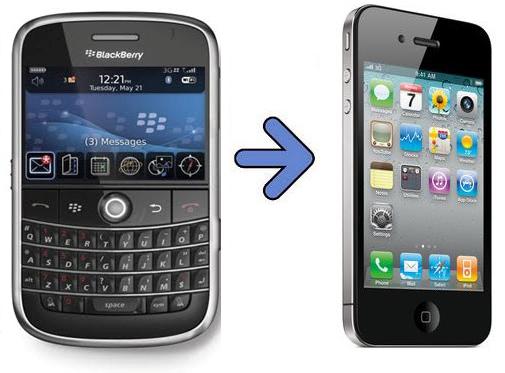
BBM notification is not working? Or
BBM notification is not popping up like the image shown?
BBM notification is not popping up like the image shown?
The first aid kit for this issue is to try the following things:
1. Make sure you have the latest version of BBM install on your iPhone
Click the following link to download from iTunes:
2. Make sure you turn ON one of the following setting under Notification settings

Go to Settings > Notifications. Look for BBM App. Go to next step please.
3. Make sure you turn the Notification Center to ON
Only if you want the BBM App to appear in your Notification Center.
If you turn it OFF, whenever new message to your BBM is coming, it will not be shown on Notification Center.
4. Make sure you turn set the Alert Style to "Banners" or "Alerts"
.png)
If you want the BBM Notification to popup whenever you get your new message, make sure to set the Alert Style to either one of "Banners" or "Alerts".
Do NOT set it to "None". Otherwise you won't get the notification of new message popped up.
5. Make sure you turn on Badge App Icon

Only if you want the notification to appear as number on the right side of your BBM App icon (notification is shown in number, in the image you see "5" which means you have 5 new unread messages).
6. Turn ON "View in Lock Screen" as well
If you want the new message coming to be popped up on your lock screen when your iPhone is in locked position (turned off).
Congratulations!
Now you should be able to have the BBM Notification up and running on your iPhone!
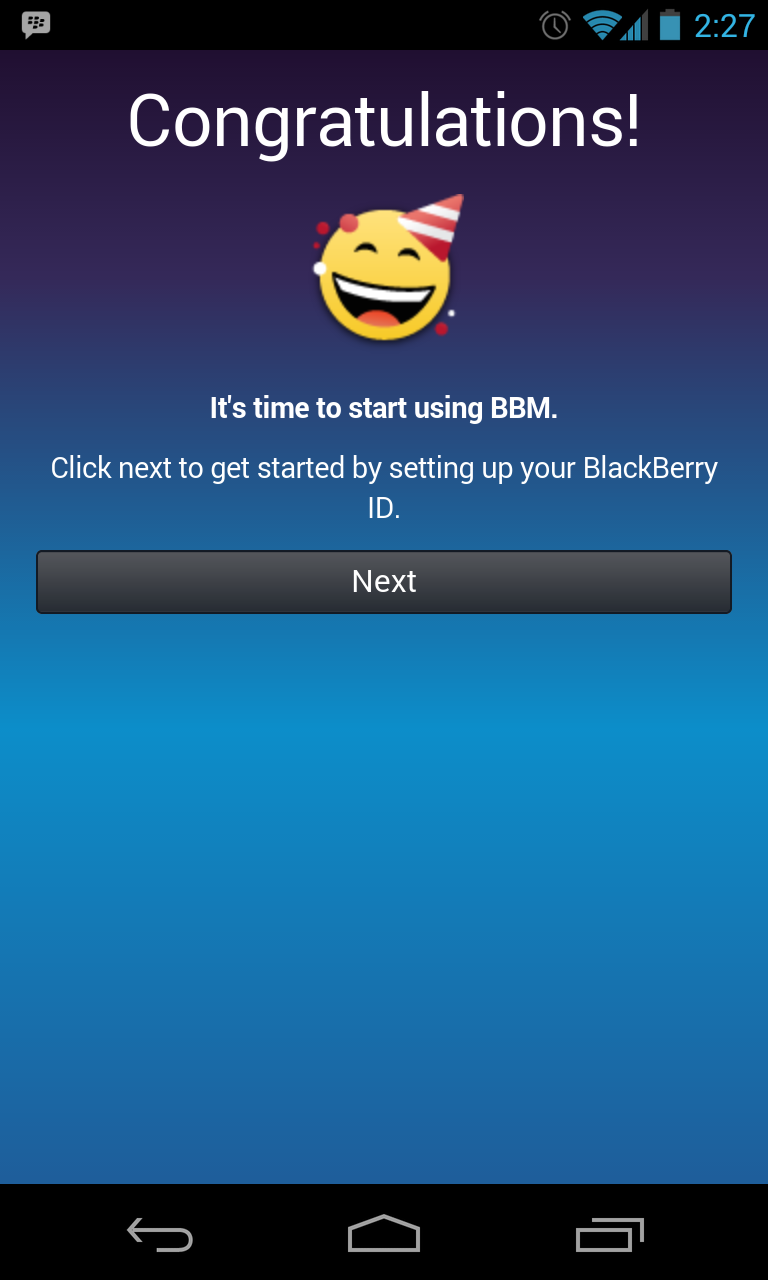
(sorry to use Android screenshot instead of iPhone screenshot)
You do NOT need to take a look at below post if your BBM Notification issue is already gone!

Additional Steps:
The following steps needed only if all the 6 ways above still could not make the BBM notification to appear on your iPhone. Here are the additional steps:
1. Kill the BBM App.
Double press the home button to active the iPhone task switcher, kill the BBM App.
After kill the app, do not re-open it yet. Ask your friend to send you BBM message.
See if the notification is now appearing after you kill the BBM App.
If the new message is appearing, follow these steps:
a. Open the BBM App.
b. Then turn off your iPhone.
c. Ask your friend to BBM message you again, and after they send it, wait if the new message is coming to your iPhone or not.
d. If the new message is coming, then please skip the rest of this article. The BBM App is now can popping up your notification.
e. If the new message is NOT coming after a few minutes, follow the next steps
2. Restart your iPhone.
By restarting your iPhone, it may help fix the issue with notification not popping up.
After restarting your iPhone, redo the step 1 above and see if the problem still persists.
Hopefully now the BBM Notification can works the way it should works!

Still having issues with BBM Notification...
Still having issues with notification not popping up after following all the steps above?
Is the notification only coming / popping up whenever the BBM App is killed from the taskbar and before reopen it?
And once you reopen the BBM App and close it (put it on the background) but not kill it, the notification stop working again?
Don't you worry! I got you covered. I still have some bullets left to save you.
Let me take a break for a while and continue on it soon.
Stay tuned on the future post on how to fix the BBM Notification issue, before you re-install the BBM App and do a re-setup which will take your time and energy, s
PS: if you are wondering why the screenshots shown above is sometimes on iOS7, sometimes is iOS6 and notice any other differences, yes they are not coming from 1 device only. Some screenshots, I took them directly from my iPhone, while some of them, I grabbed it from the internet.
Do let me know if I infringe your intelectual property.
All screenshots shown is belong their respective owner.
Cheers!